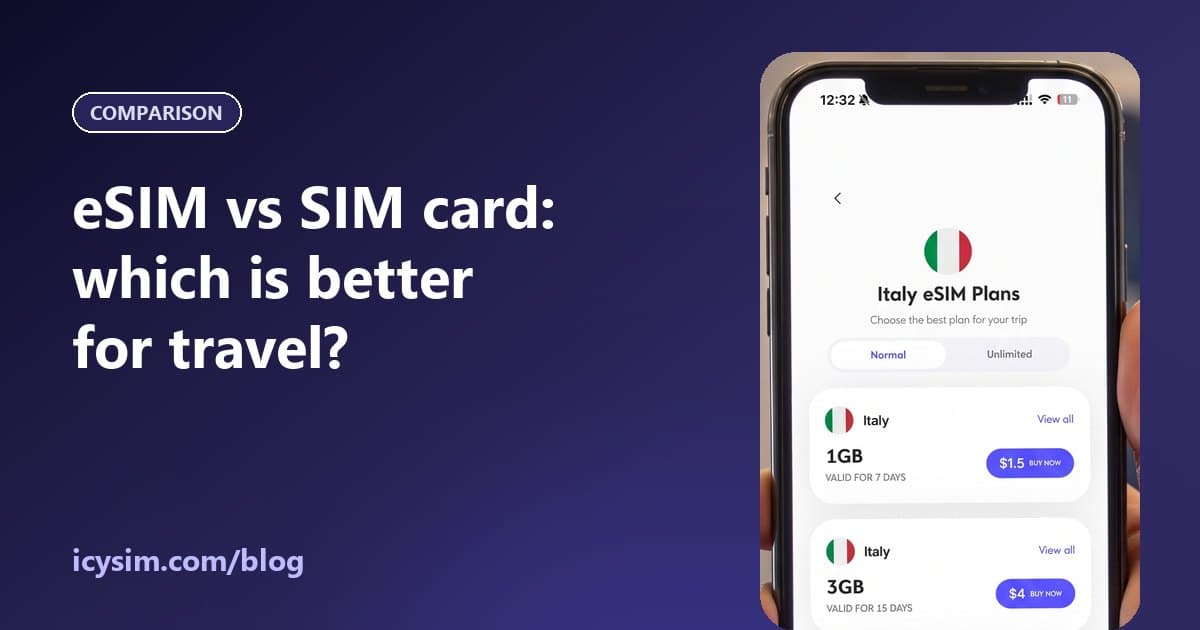

Yes — an eSIM works internationally, exactly like a physical SIM does. The only conditions are that your phone supports eSIM and is carrier-unlocked. What really decides your experience abroad is which eSIM you use: your home carrier’s line on roaming, or a travel eSIM that connects you to local networks at your destination.
- eSIM is a global standard — it works in other countries the same way a SIM card does.
- You need an eSIM-compatible, carrier-unlocked phone. That’s the whole checklist.
- A travel eSIM gives you local data at a fixed prepaid price instead of your carrier’s roaming charges.
- Install it at home on Wi-Fi; turn on data roaming for the travel eSIM only when you land.
- Travel eSIMs are usually data-only — keep your home SIM on for calls and texts.
What an eSIM actually is (in 30 seconds)
An eSIM is a SIM that’s built into your phone instead of being a plastic card. You download a mobile plan onto it — usually by scanning a QR code or tapping “install” in an app — and it connects to mobile networks exactly like a physical SIM. Most eSIM phones can store several plans and keep two lines active at once, which is what makes eSIM so useful for travel. The standard behind it is run by the GSMA, the mobile industry body, which is why it works across networks and countries. More background: what is an eSIM.
How eSIM works when you travel
When you travel, you have three ways to get mobile data. Most people who use eSIM keep their home SIM for calls and texts and add a travel eSIM for data. When you land, the travel eSIM connects to a local partner network, so you pay the plan price you chose upfront — not per-megabyte roaming.
| Home carrier roaming | Travel eSIM | Local SIM card | |
|---|---|---|---|
| What you pay | Daily pass or per-MB roaming | One prepaid price per plan | Local prepaid price |
| Bill surprises | Possible | None — you can’t go over | None |
| Your home number | Works as normal | Stays active on your home SIM | Removed while the local SIM is in |
| Setup | Nothing to install | Scan or tap install before you fly | Find a shop, often show a passport |
| Ready when you land | Yes | Yes | After you find a shop |
What you need before you go
- An eSIM-compatible phone. Most iPhones from the XS/XR onwards, recent Google Pixels and Samsung Galaxy S-series support it — check your exact model.
- A carrier-unlocked phone. A locked phone refuses eSIMs from other providers. If you’re not sure, ask your carrier before the trip — unlocking can take a few days.
- Wi-Fi to install it. Downloading the eSIM needs an internet connection. After that, the eSIM itself is your internet.
- A plan for where you’re going — a single country, or a regional plan if you’re crossing borders.
How to set up a travel eSIM, step by step
Here’s the whole flow in the ICY SIM app — it takes about two minutes:
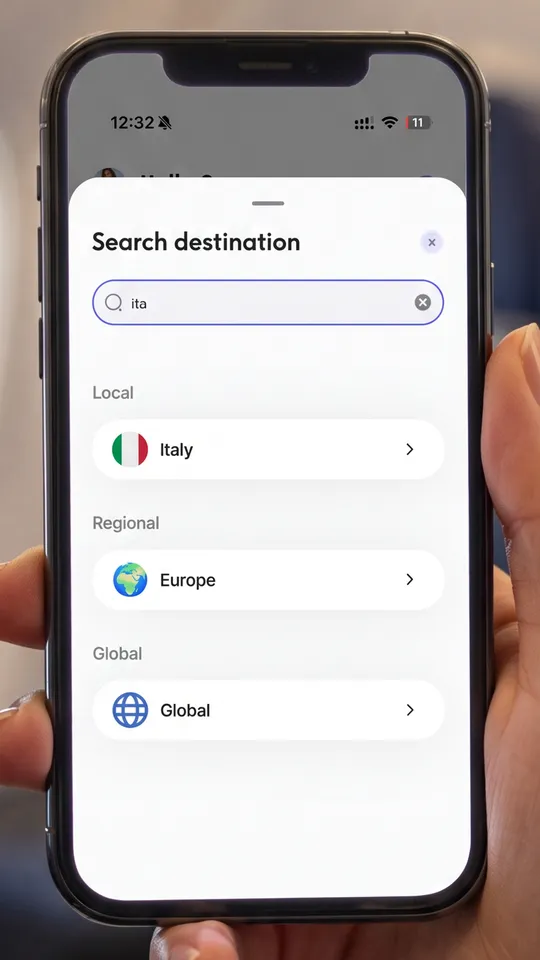
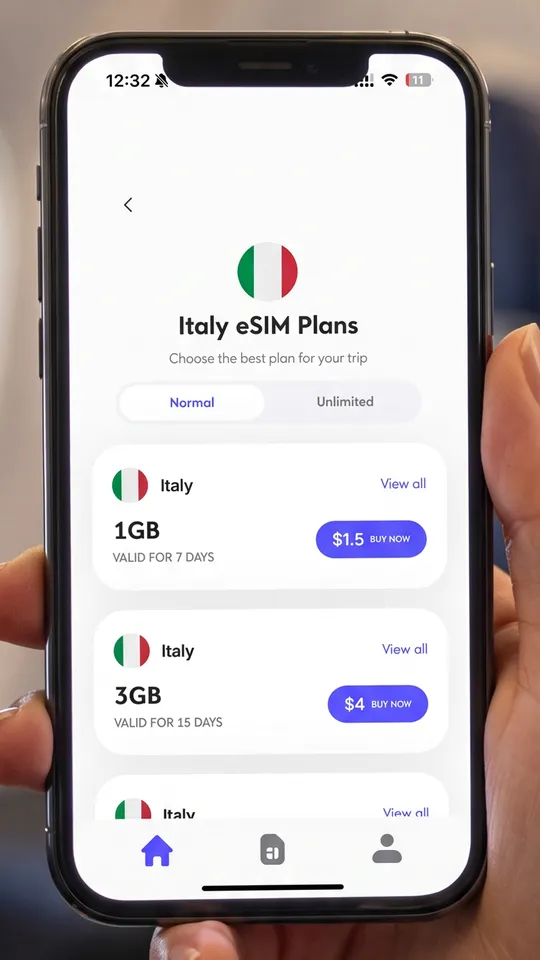
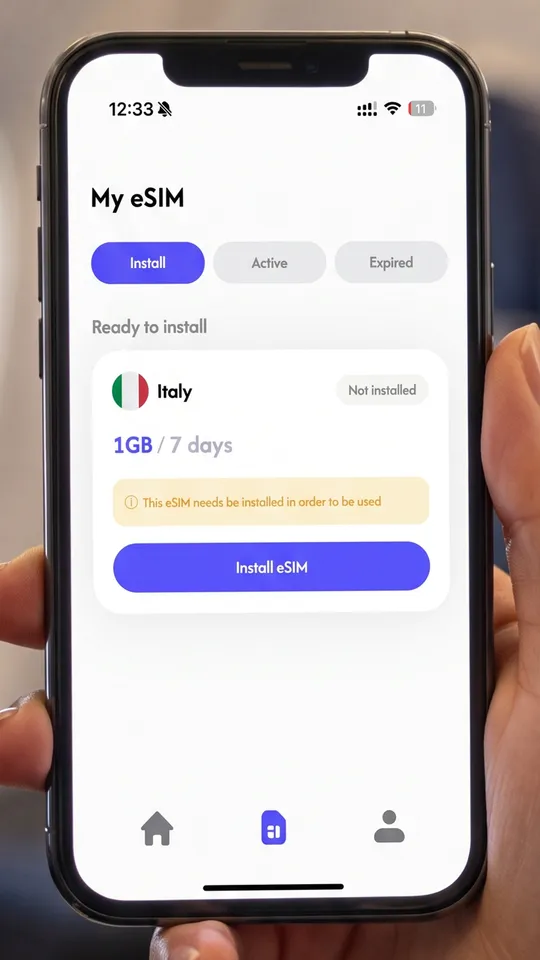
- Search your destination and pick a plan — in the app or on our destinations page.
- At home, on Wi-Fi, tap Install eSIM (or scan the QR code from your email).
- Your phone asks to add a new cellular plan — confirm, and label it something obvious like “Travel”.
- Leave it switched off as your data line until you arrive — nothing is used yet.
- When you land, set it as your mobile data line and turn data roaming on for that line (below).
Step-by-step guides with screenshots for each phone are in our installation guide. Apple’s own walkthrough is here: Set up eSIM on iPhone.
Do you need to turn on roaming with an eSIM?
Usually yes — but only for the travel eSIM. Travel eSIMs connect through partner networks abroad, which your phone treats as roaming. Turning data roaming on for that line doesn’t cost anything extra: you’ve already paid for the plan. The line to watch is your home SIM — keep its data roaming off, or your carrier may charge you.
Leave your home line on for calls and texts (bank codes still arrive), but make sure its data roaming is off. Apple explains the same setup in Use eSIM while traveling internationally.
Should you install the eSIM before you travel?
Yes. Install it at home while you have reliable Wi-Fi, so it’s ready the moment you land — no hunting for airport Wi-Fi to download it. With ICY SIM, the plan’s validity starts when you first use data on it, not when you buy or install it, so installing a few days early doesn’t cost you any days abroad.
What we see on real ICY SIM orders
Our customers have used ICY SIM in the United States, Indonesia, the United Kingdom, Germany, France, Spain, Italy, Morocco, Oman, the UAE, China, Thailand and Latvia, plus our Europe, Asia and Global plans.
The feedback on coverage and speed across those destinations has been consistently good. The setup that works is the one above: install at home on Wi-Fi, keep your home SIM for calls and texts, and switch the data line to the eSIM when you land. If anything doesn’t connect, message support before deleting the eSIM — a deleted eSIM usually can’t be restored.
eSIM not working abroad? Check these in order
- Is the travel eSIM your mobile data line? On iPhone: Settings → Cellular → Cellular Data. On Android: Settings → Network & internet → SIMs.
- Is data roaming on for the travel eSIM? It usually has to be — it connects through partner networks.
- Is the line turned on? A line can be installed but switched off. Toggle it on.
- Toggle airplane mode on for 10 seconds, then off. This forces the phone to search for networks again.
- Restart the phone. Still nothing? Try selecting a network manually (turn off automatic network selection and pick one of the networks listed on your destination page).
- Contact support — don’t delete the eSIM. A deleted eSIM usually can’t be re-downloaded; support can check the line from our side.
How much data do you need abroad?
| How you use your phone | Rough data per day | A 7-day trip |
|---|---|---|
| Maps, messaging, email | ~150 MB | ~1 GB |
| + social media and photo uploads | ~500 MB | ~3–5 GB |
| + video, video calls or hotspot for a laptop | 1 GB or more | 10 GB+ |
These are rough averages — streaming video is what burns through data fastest. If you’re unsure, pick the middle option; you can top up in the app if you run low rather than paying for data you won’t use.
Does eSIM work on a cruise?
In port and close to shore, yes — your travel eSIM connects to the local network of the country you’re docked in, as long as your plan covers it. At sea it won’t: out of range of land towers, phones connect to the ship’s own maritime network, which is billed separately (often expensively) by your home carrier. Keep data roaming off on your home line at sea, and use the ship’s Wi-Fi or wait for port. A regional plan is handy for itineraries that stop in several countries.
The downsides (honestly)
- Not every phone supports it. Older phones and some models sold in mainland China, Hong Kong and Macau don’t. Check before you buy.
- Locked phones won’t work. If your carrier locked the phone, get it unlocked before the trip.
- Travel eSIMs are usually data-only. You don’t get a local phone number — calls go through WhatsApp, FaceTime or iMessage, or your home line.
- Don’t delete it mid-trip. Most eSIMs can’t simply be re-downloaded once removed. If something looks wrong, contact support before deleting anything.
- You need internet to install it. Do it before you leave, not at the arrivals gate.
Will it work in every country?
eSIM itself works everywhere mobile networks do. What varies is which local networks a plan uses and how strong they are in the places you’re visiting. Each of our destination pages lists the actual networks — for example, the Japan eSIM connects to KDDI/au, SoftBank, Rakuten Mobile and NTT docomo. If you’re crossing several countries, a regional plan such as Europe or Asia saves buying one per border.
Is an eSIM worth it for international travel?
For most trips, yes. You skip the SIM shop at the airport, you know exactly what you’ll pay, and your home number keeps working for calls and bank texts. The cases against it are narrow: a phone that doesn’t support eSIM, or a long stay where you specifically need a local phone number for local services.
Going somewhere soon?
Pick your destination to see real plans and the networks they use — install in two minutes before you fly.
Find your destination →